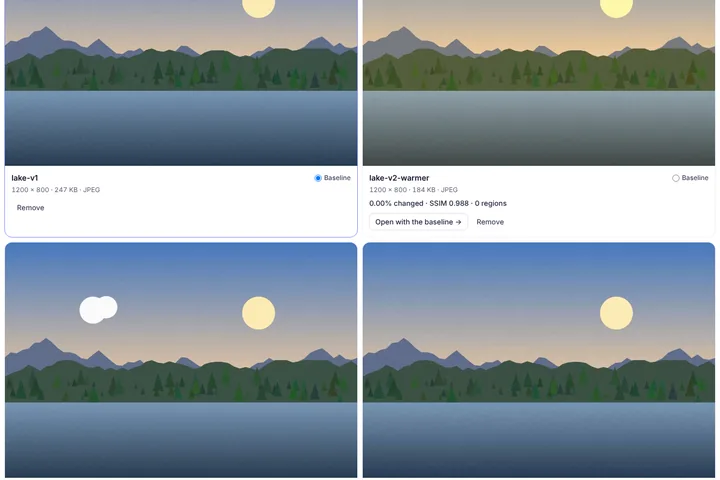
Line up three or four versions of the same picture — drafts, exports, edits — pick one as the baseline, and see at once how far each of the others has moved from it.
One baseline, several versions
Two-picture comparison answers “what changed?”. With several versions the question becomes “which of these drifted, and how far?”. Each version is compared with the baseline using the same Photo sensitivity, after being fitted to the baseline's frame, and its tile shows the share of pixels that changed, the structural similarity (SSIM) and how many separate changed regions there are.
Choose a different baseline with the radio button on its tile and every number is worked out again. Open any version to see it against the baseline in the full workspace — numbered changes, slider, text and metadata — and come back to the grid with one click.
Zoom one, zoom all
The grid's zoom and position are shared: double-click a detail in one tile and every tile shows that detail. Hold Ctrl or ⌘ and scroll to zoom, drag to move around. It is the quickest way to check whether an export setting, a retouch or a compression level touched the area you care about.
Taking the result with you
The grid PNG puts all versions in one picture with their sizes and numbers underneath; the JSON file holds the same figures with file names and SHA-256 hashes for a record. Both are made in this tab.